Return of the 8bit Bell Bottoms
altair cpm 8080While I am generally not interested in purchasing emulated (retro) hardware, I made an exception for the Altair 8800 mini.
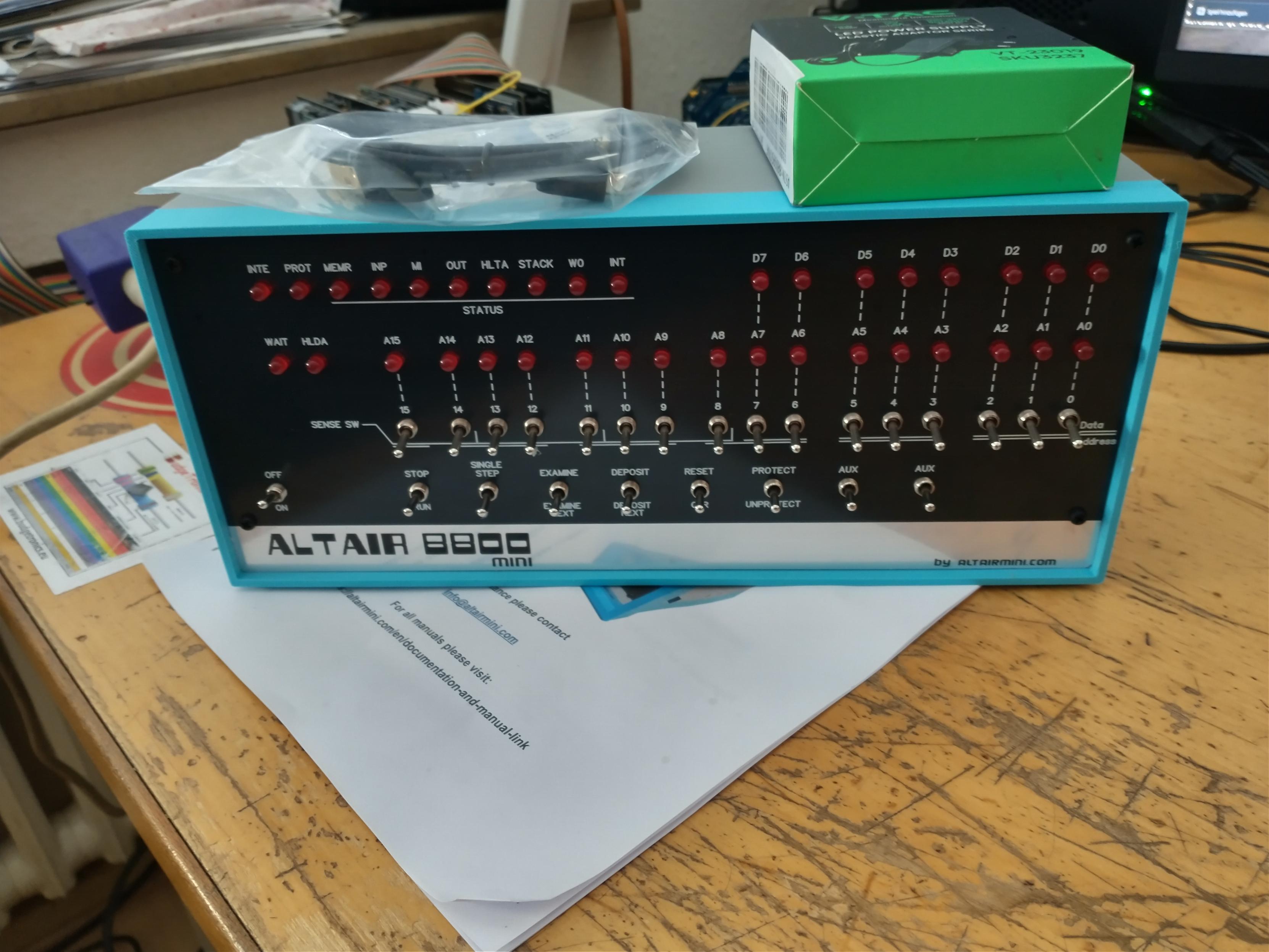
As the name suggests, this is a replica of the legendary MITS Altair 8800 microcomputer from 1975. I will not get into the history of this machine as there are plenty of other sources elsewhere on the net covering that in full detail.
What I will cover here is my personal experience with the Altair 8800 mini and what you can expect from it, feature wise.
So the reasons for making an exception to my “no emulated hardware” rule were:
-
a real Altair 8800 is quite rare these days
-
a real Altair 8800 is also quite expensive these days
-
the Altair 8800 mini promises to come close to the real thing, including an expansion bus to add additional modules such as a Centronics interface or a Cassette Tape I/O interface.
What you get
The model I purchased has the optional built-in terminal emulator board as well as the WiFi option and came assembled and ready to run. The former allows you to connect a USB keyboard and a VGA monitor directly to the machine while the latter can be switched to by a separate switch on the back, to enable use of the internal WiFi bridge and modem emulator. There’s also a micro USB port for connecting to the Altair 8800 mini from your PC or Mac.
At the side of the case is a micro SD card slot through which you can provide floppy disk and hard disk Images. A preloaded micro SD card with a big selection of floppy- and hard disk images as well as a USB stick containing documentation and the zipped contents of the SD card are included with the machine.
Power is either supplied to the machine via the micro USB connector or via a separate 12V power supply, which are both also included with the Altair 8800 mini.
Once powered on there’s not much happening except for the front-panel lighting up. However, the front-panel switches can be used to configure the emulator at run-time (e.g. mount a disk image from the SD card and boot it) or to trigger a special configuration menu to set up your configuration (e.g. serial ports, default ROM image etc.). As I mentioned above, there is plenty of documentation included with the system, and the user guide will get you all set up and started in a straightforward manner.
Aside from CP/M 2.2, there are many other disk images to boot your system. These include (amongst others): ALTAIR Disk Basic, Time Sharing Basic V1.1 & V2, Altair DOS 1.0 and CP/M 3.
I must admit that I haven’t yet taken a look any of these aside from CP/M 2.2 and IMP so I cannot tell you more about them. To create new disk images or access the existing ones, a tool called “altairdisk” is available on GitHub. Any attempts to access the CP/M floppy disk images using “cpmtools” did not lead to success.
The Altair 8800 mini also comes with several ROM images which can be selected via the front-panel switches, similar to selecting and mounting the disk / hard disk images. These include 4K BASIC and 16K BASIC as well as various diagnosis ROMs, the MITS Programming System II and the infamous “kill-the-bit” game, among others.
Feelings, nothing more than feelings …
So how does it actually feel to work with the Altair 8800 mini? First off, the machine is very light in terms of weight. On my system, the little rubber “feet” at the bottom quickly peeled themselves off, so I had to replace them with ones that would properly stick to the case. The switches are good to handle in general but feel a little “notchy”, meaning that you need to use a little pressure to press them. But this is my personal experience, you mileage may vary.
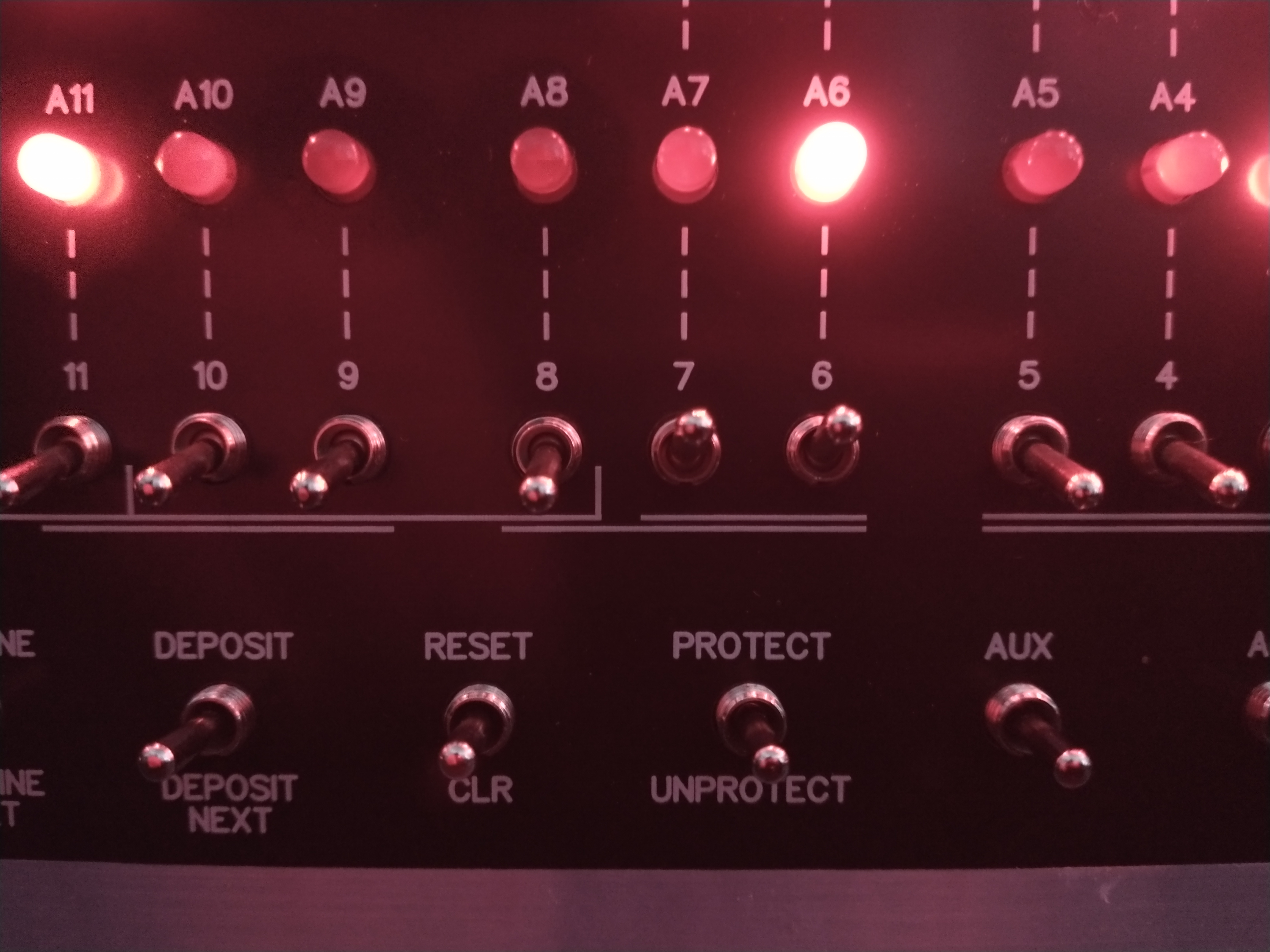
Handling the switches needs a little time to get used to: sometimes I forgot to reset a switch after entering the previous command and thus screwed up the entry of the next one. However, after a while it becomes routine and steps like setting up the machine to boot CP/M via the front-panel are quickly memorized.
The LEDs are bright on a steady level, with no flickering. Since I am using the internal terminal emulator and have a VGA Monitor and USB keyboard connected to the machine, I have connected the 12V power supply as is recommended in the manual.
One of the first things I did was to test the WiFi bridge by booting one of the disk images on the SD card. The one I booted into contains the IMP serial terminal program for CP/M. If the WiFi option is installed, there is a switch at the back of the case of the Altair 8800 mini which lets you switch the serial port from the DB9 connector at the back to the internal WiFi bridge. Once that was done, I could use IMP to “telnet-dial” and connect to a telnet BBS of my choice.
More to come
As I have already mentioned, the Altair 8800 mini features an expansion bus, accessible through a 25-pin D-SUB port at the back of the machine. Here, you can connect either the “Expansion Box Unit” or the “I/O Bus Expansion Board” which allow you to add various expansion modules to the system. These include a Centronics parallel interface, a floppy-disk controller, a Cassette Tape (!) I/O interface and a LED output register module. While I haven’t purchased any of these modules yet, the availability of an expansion bus and several add-on modules were one of the reasons I decided to purchase the Altair 8800 mini even if it is “just” an emulated system. In my opinion, being able to connect an old dot-matrix printer, floppy disk drive or a cassette tape recorder massively adds to the user experience.
A moment of shock
One short moment of shock occurred when all of a sudden, after messing with the front-panel switches, the machine turned dark. No LEDs lightened up anymore and the Altair 8800 mini did not respond to any commands I “switched in”. Only the internal terminal emulator responded, offering its setup menu. What a bummer.
At first I thought that somehow I must have killed the machine, getting that bad feeling in my guts. However, since the whole thing is based on an Arduino Due, I thought that maybe I can find out more by connecting the Altair 8800 mini via the USB port and running the Arduino CLI tool on my Linux box.
A few checks later I was relieved to find that the Arduino Due was still working, offering its programming port at /dev/ttyACM0 and responding to commands from the Arduino CLI tool.
So eventually I downloaded the Altair 8800 mini firmware from the maker’s website and just flashed it using the CLI tool, giving it a shot in the dark. And lo and behold, the front-panel lightened up again and the Altair 8800 mini was responding to commands again! Hooray!!
I don’t know what I did and what actually happened but it seems that somehow, maybe through a combination of the front-panel switches, I must have either put the Arduino Due into programming mode or erased the firmware from the flash memory. I am not sure which.
This only happened once and I have been unable to replicate that behavior. So maybe it was just a matter of bad luck. Being able to download the firmware and flash it to the Arduino was a big help and added to the overall positive impression I have of the Altair 8800 mini.
Conclusion
So, is the Altair 8800 mini more than just a nice blinkenlights eye-catcher for your living room shelf? I’d say yes, as it tries to replicate the original user experience as closely as possible including a big selection of original software and being able to interface with the outside world through its serial port, WiFi and additional expansion modules. This is a real microcomputer, not just some nifty retro toy. With its comprehensive documentation and the included extras (USB stick with all media, SD card with disk images, USB cable and 12V power supply) you get everything to get you started. Source code and a binary image for the emulator firmware itself are provided free of charge on the Altair 8800 mini website, making it easy to update it or fix problems.